English
UC Browser

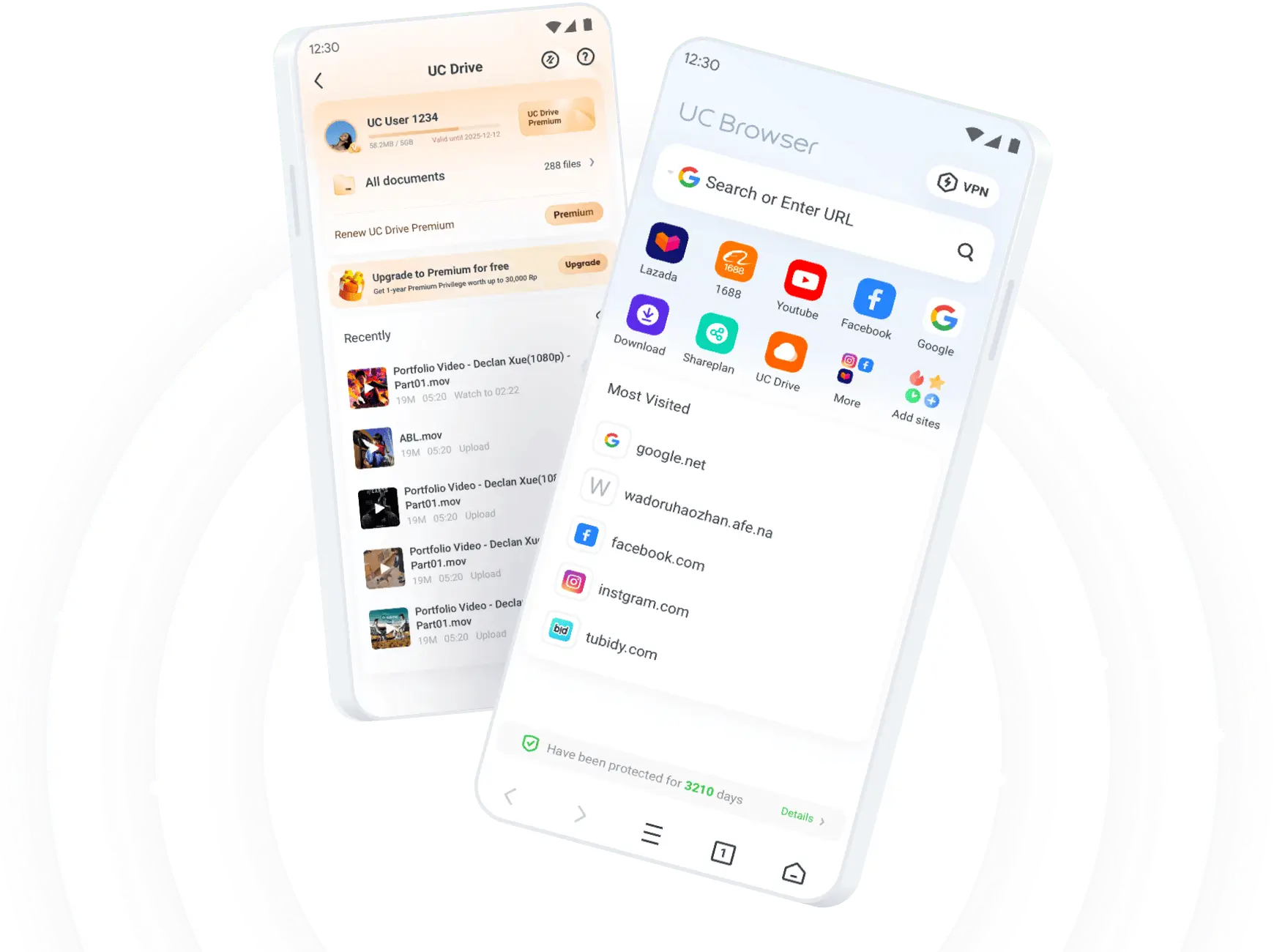
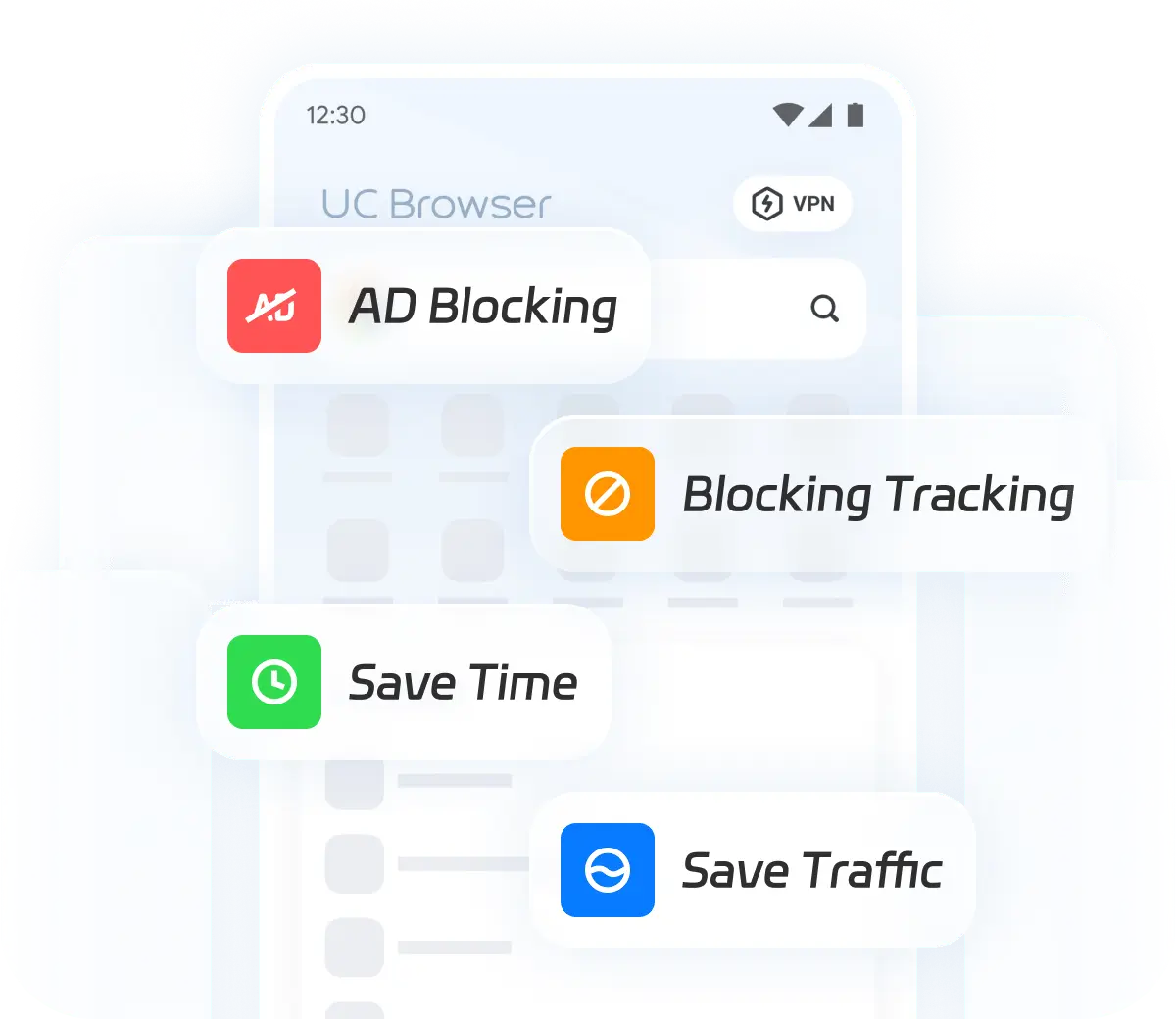
Clear web design with fewer ads
UC Browser boasts an intuitive interface with built-in ad-blocking features. This creates an uninterrupted browsing environment, providing a cleaner and somoother surfing experience.
More
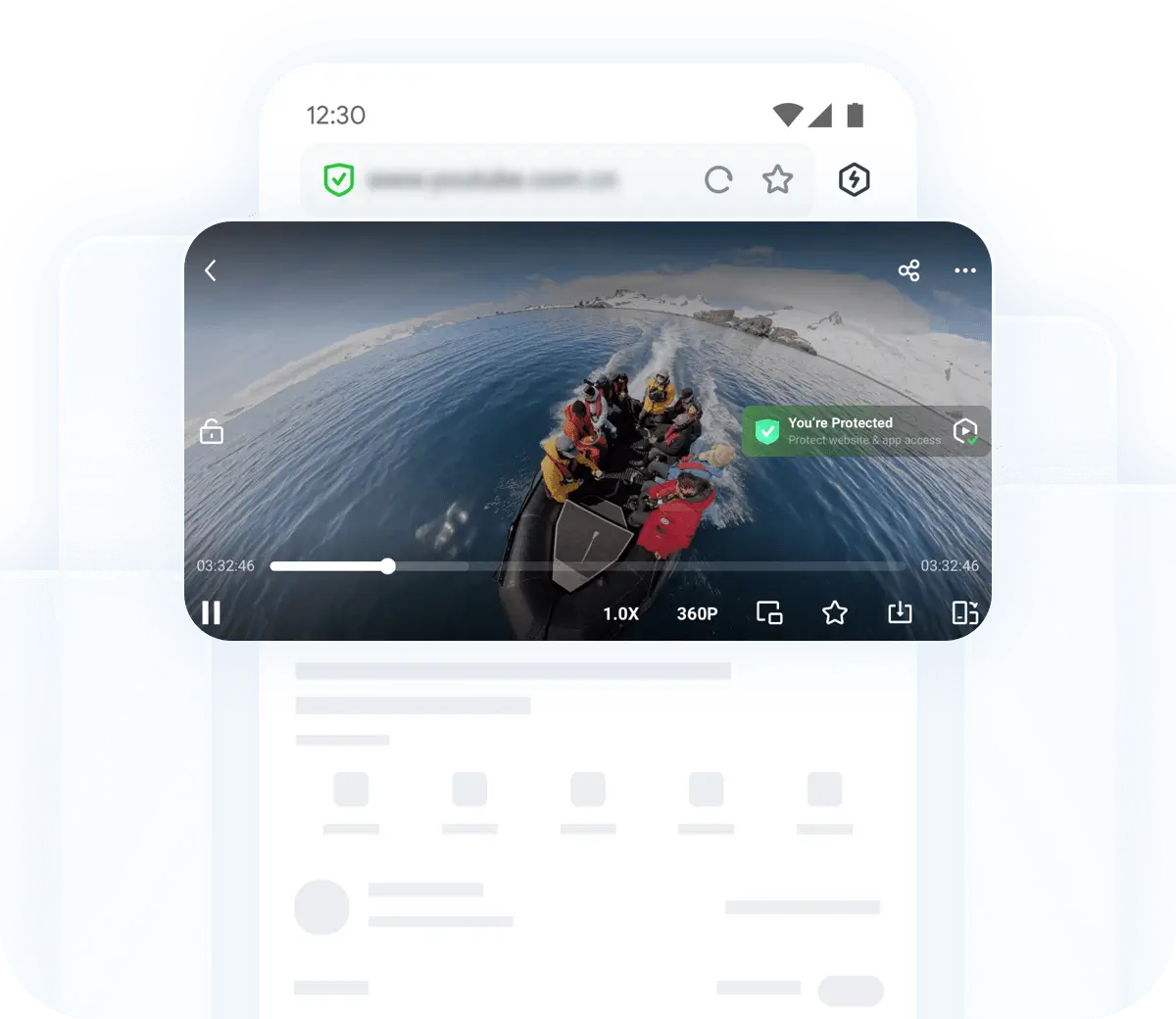
Smooth video playback without lag
UC Browser is practical and stylish with powerful web video playback capabilities, supporting accelerated video loading, high-resolution playback in all formats, speed control up to 2×, floating window play, and seamless downloading for offline viewing.
More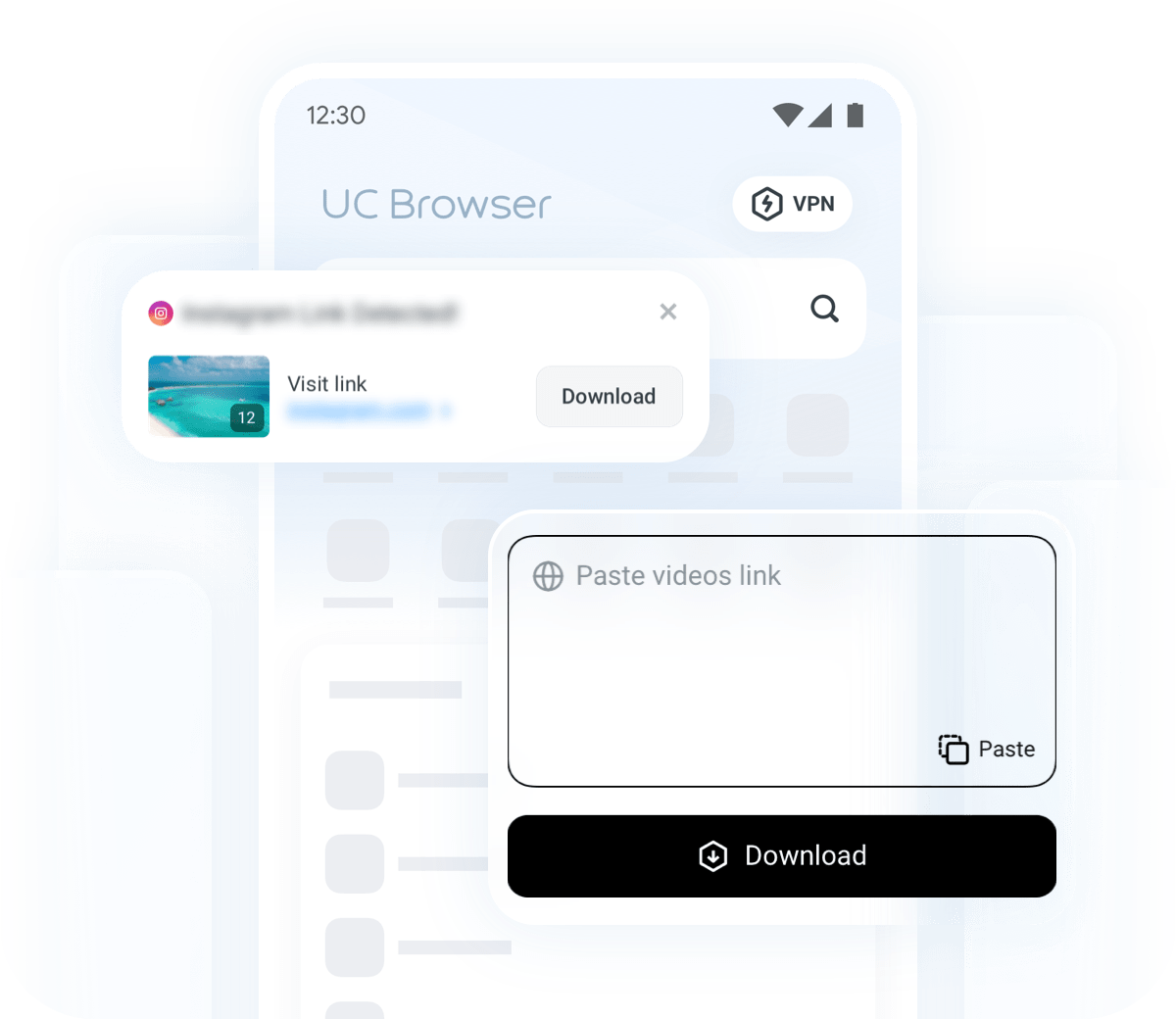
Lightning-fast browsing & instant downloading
UC Browser delivers fast video loading and automatically detects online videos, allowing for one-click high-speed downloads. It enables fast loading and effortless saving of media content from websites and social platforms directly to your device.
More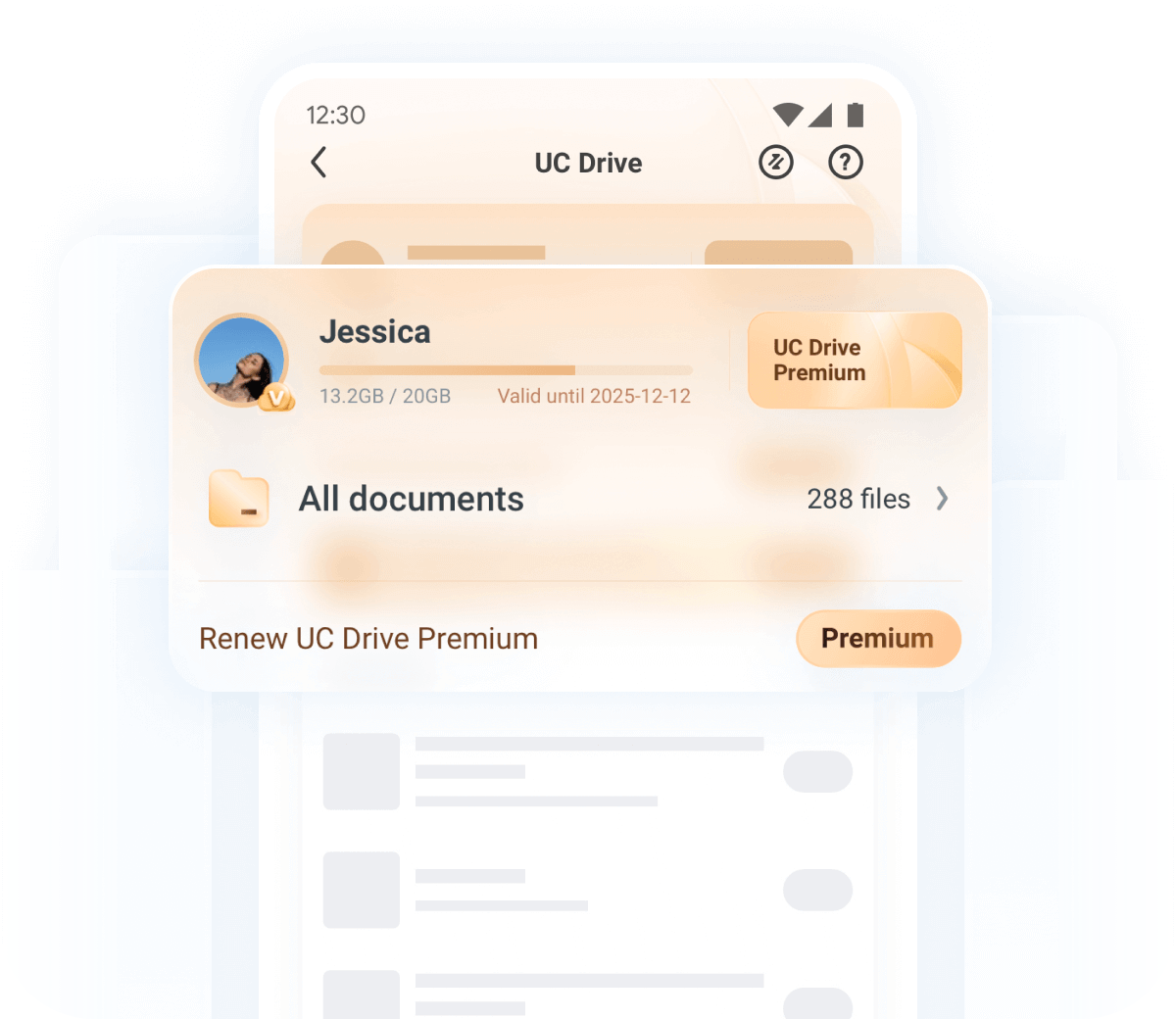
Generous 20GB cloud storage
We offer 20GB free cloud storage, allowing easy backup of all your data. Robust protection ensures your files stay safe from data breaches, with seamless options to sync, access, and share your content.
More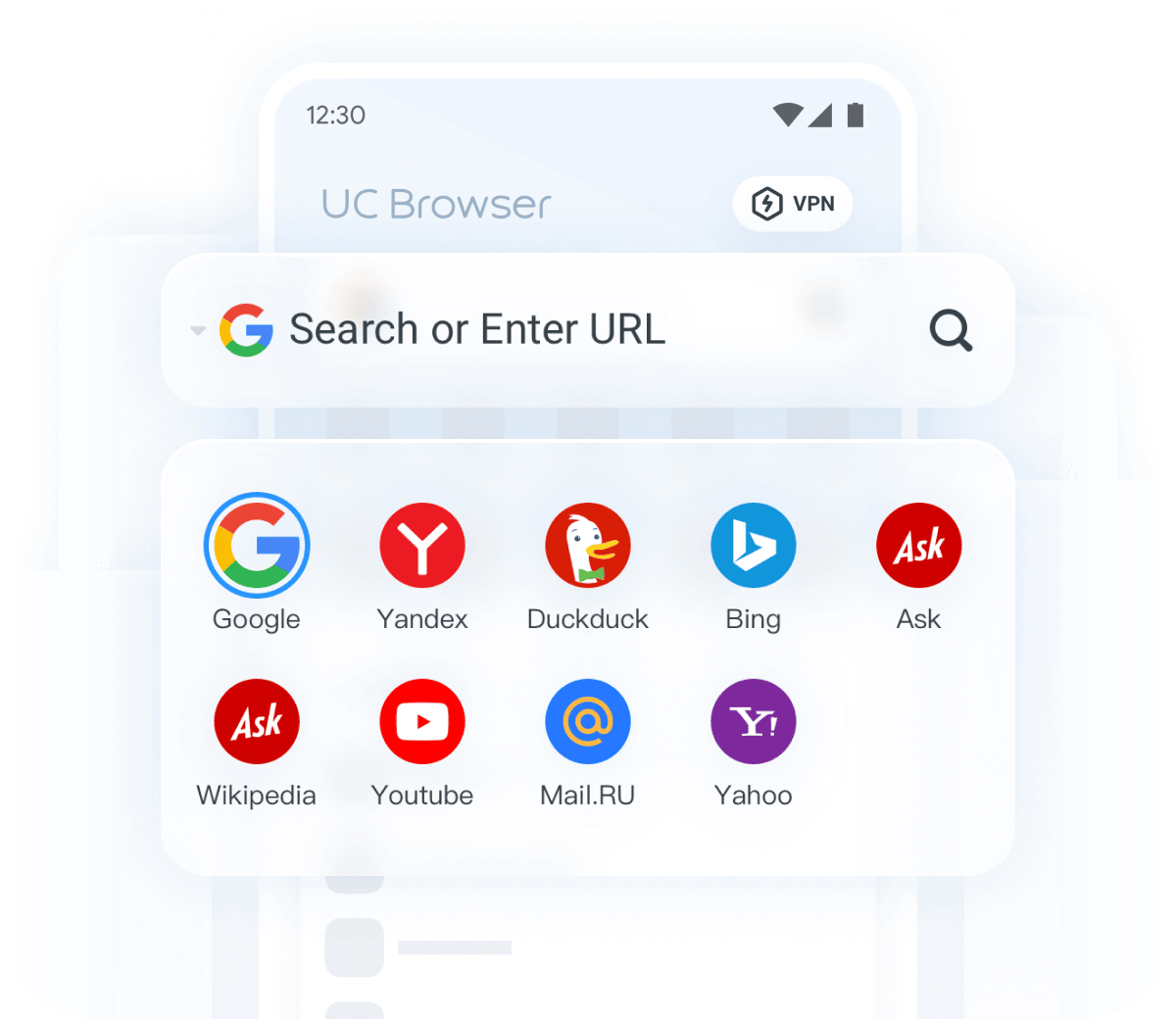
AI-driven translation & Multi search engine
With multiple AI translation models, our web translation deliver accurate translations, enabling you to translate pages into multiple languages anytime. Additionally, we support multiple search engines, allowing you to simply enter any keyword and click to access the site you want.
More
Our Feature

Who We are
UC Browser, launched in 2004, has evolved into one of the world’s leading mobile browsers. By 2025, its total users have exceed 1 billion, securing a position among the top three browsers globally. Its exceptional performance and user-centric features drove impressive market penetration, capturing over 30% market share in key regions like India and Indonesia—outpacing competitors such as Firefox and Opera. UC Browser's success is rooted in its commitment to speed, privacy, and innovation, meeting the evolving needs of users across diverse markets.

What Our Customs Are Saying
 Mos Rahim
 I've read a lot of mixed reviews from various sites and Android authorities about the big UC, and the one undeniable fact is that it just can't be topped when it comes to download speeds. This is the Bugatti of browsers; it's big, load, flashy, and ridiculously fast. A simple user interface, yet modern enough to keep up so far. I keep a couple of browsers handy on my phone, but the UC is the one that goes so well with those 5G download speeds.
 A Google userI've been using UC Browser for a while now, and I'm really impressed with its performance. The browsing speed is incredibly fast, and the ad-blocking feature makes for a much cleaner experience. I also love the built-in video downloader, which works seamlessly for both social media and websites. It's definitely my go-to browser for both daily use and streaming.
 James ReganBeen using this browser since 2015, andi it's always been my favorite, for some reason it just feels faster at everything than any other browser, and I try them all. the "tools" option is amazing also, which so many other browsers have copied, the speed mode is nice, the pop-up blocker is amazing. this is just an all around unique browsing experience and I recommend UC Browser over any other.
 A Google userI'm doing my CM Security cleaning thing when I get a pop up for a companion product dubbed: UC Browser. I'm definitely game so I download it and use it directly with FaceBook. I'm just LOVING how it processes URLs and links like a hot knife through butter. I wholeheartedly recommend this browser alternative. Its a step UP and then some.
 A Google userRecently I've been getting pop-ups on every site I visit. All spam. It's a shame but I'm going to have to use another browser. So the search begins... I've used probably a dozen different browsers, and this one is my favorite, hands-down.
 A Google userI've been using UC Browser’s VPN for a while now, and honestly, it’s been great! The speed boost is definitely noticeable, especially when streaming videos. I can access content smoothly without interruptions, and browsing feels way more secure. It’s really improved my overall experience.
 Jabir AliI have been using UC Browser on my phone for several months now, and overall, I am quite satisfied with its performance. The interface is user-friendly and easy to navigate, which makes browsing the web a pleasant experience. One of the standout features for me is the speed of the browser. Pages load quickly, and the data-saving mode is a great addition, especially when I'm on a limited data plan. The download manager is also efficient, allowing me to download files seamlessly.
- Mos RahimI've read a lot of mixed reviews from various sites and Android authorities about the big UC, and the one undeniable fact is that it just can't be topped when it comes to download speeds. This is the Bugatti of browsers; it's big, load, flashy, and ridiculously fast. A simple user interface, yet modern enough to keep up so far. I keep a couple of browsers handy on my phone, but the UC is the one that goes so well with those 5G download speeds.
- A Google userI've been using UC Browser for a while now, and I'm really impressed with its performance. The browsing speed is incredibly fast, and the ad-blocking feature makes for a much cleaner experience. I also love the built-in video downloader, which works seamlessly for both social media and websites. It's definitely my go-to browser for both daily use and streaming.
- James ReganBeen using this browser since 2015, andi it's always been my favorite, for some reason it just feels faster at everything than any other browser, and I try them all. the "tools" option is amazing also, which so many other browsers have copied, the speed mode is nice, the pop-up blocker is amazing. this is just an all around unique browsing experience and I recommend UC Browser over any other.
- A Google userI'm doing my CM Security cleaning thing when I get a pop up for a companion product dubbed: UC Browser. I'm definitely game so I download it and use it directly with FaceBook. I'm just LOVING how it processes URLs and links like a hot knife through butter. I wholeheartedly recommend this browser alternative. Its a step UP and then some.
- A Google userRecently I've been getting pop-ups on every site I visit. All spam. It's a shame but I'm going to have to use another browser. So the search begins... I've used probably a dozen different browsers, and this one is my favorite, hands-down.
- A Google userI've been using UC Browser’s VPN for a while now, and honestly, it’s been great! The speed boost is definitely noticeable, especially when streaming videos. I can access content smoothly without interruptions, and browsing feels way more secure. It’s really improved my overall experience.
- Jabir AliI have been using UC Browser on my phone for several months now, and overall, I am quite satisfied with its performance. The interface is user-friendly and easy to navigate, which makes browsing the web a pleasant experience. One of the standout features for me is the speed of the browser. Pages load quickly, and the data-saving mode is a great addition, especially when I'm on a limited data plan. The download manager is also efficient, allowing me to download files seamlessly.
- Are VPNs legal or illegal?

- Are VPNs safe?
- Does VPN have an impact on internet performance?
- What are the types of VPNs? How to choose the best VPN?
- What makes UC Browser's vpn different from other browsers?
- How does UC Browser's vpn ensure my privacy and security?
Frequently Asked Questions